
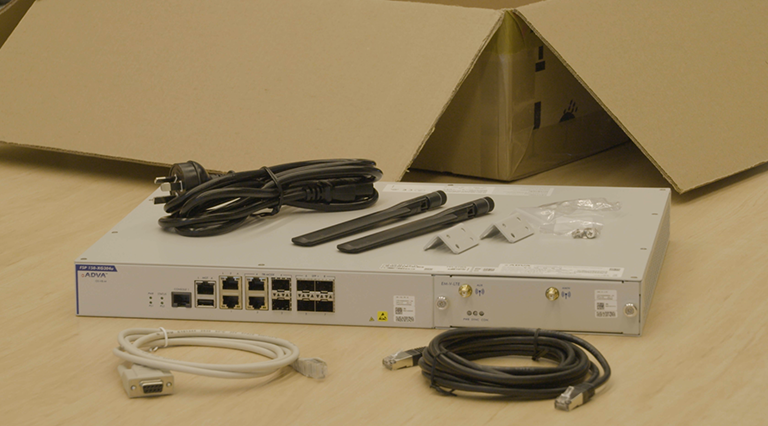
This guide will help you troubleshoot any issues with your new Capti Ethernet Access service. By following these steps, you can ensure that your service is functioning correctly and identify any potential problems.
Chapter 1: Troubleshooting Steps
1. Identify Your Network Termination Unit (NTU)
Capti Ethernet Access services are typically delivered via the following NTUs:
- 150-FSP-XG304/OS-V8
- 150-FSP-XG304u/OS-V8-M
In some cases, services may have been activated on an existing NTU, such as the OS904, OS906, or OS940. These devices are managed on a case-by-case basis, so avoid touching them as they may affect active services.
2. Check the Network Terminating Unit (NTU) LEDs
Start by checking the LEDs on the front panel of your NTU. The LED indicators provide essential information about the status of the device:
NTU Power LED (PWR)
- Green: NTU powered up, Power Supply Unit (PSU) is operational.
- Off: No power to NTU or PSU failure. Ensure the NTU is receiving power; if it is, contact support to replace the NTU.
NTU Activity LED (STAT)
- Green: NTU is functioning normally.
- Blinking green: Startup sequence failed or NTU is rebooting. If blinking continues for more than 2 minutes, power cycle the device. If the issue persists, contact support.
3. Check Port Connections
If the NTU status LEDs are green, proceed to check the port connections:
Network Interface
- This interface connects the NTU to the Capti network. Usually connected via a 1Gig SFP (Fibre) on Port 4, or a 10Gig SFP+ on Ports 7 or 8.
User Interface
- This port connects your equipment to the NTU, typically via Port 1. If multiple services are provisioned, Port 3 (1Gig SFP) and Port 5 (10Gig SFP) may be used.
Make sure to refer to the Service Completion Advice and Handover Document for the correct interface to use.
Chapter 2: Checking Ethernet Port Status
Ethernet Port LEDs
Check the Ethernet port status on the NTU to ensure the connections are functioning properly:
Electrical Port Link LED
- Amber: Port link is up.
- Off: Port link is down. Check physical connections. For network interfaces, confirm with support that the port is enabled.
SFP Port Link LED
- Green: Port link is up.
- Blinking green: Data is flowing across the link.
- Off: Port link is down. Check the physical connection. If the problem persists, contact support.
NBN and Wireless Backup Devices
For services that involve NBN and wireless backup, check the corresponding module status LEDs. The PWR LED should be green, indicating proper module power, and the Sync LED should be green for successful connections.
Chapter 3: User Interface Port Checks
Physical Checks
- Confirm the Correct Port: Ensure you're connecting to the port provisioned for your service. Check the Service Completion Advice for reference.
- Match Settings: Ensure that the port settings match those requested in your service order.
- Check Cable Functionality: Test your Ethernet or fibre cable to ensure it’s working. If using a fibre cable, verify compatibility between the NTU and your equipment’s Small Form-Factor Pluggable (SFP) modules.
- Check with an Optical Power Meter: Use an optical power meter to confirm that fibre power readings are within specification.
Logical Checks
If physical connections are working but the service is not, follow these steps:
- Check Connectivity: Verify that your device has connectivity.
- Check MAC Addresses: Ensure your device is learning Media Access Control (MAC) addresses from the NTU. If none are detected, re-check logical configurations such as MTU and VLAN-tagging.
- Reboot Device: If necessary, reboot your device to reinitialize ports.
- Contact Support: If issues persist, contact Capti support to verify the NTU configuration.
By following this guide, you can successfully check and troubleshoot your new Capti Ethernet Access service. For more complex issues, Capti’s support team is ready to help ensure your service is fully operational.