
This guide will help you troubleshoot any issues you may experience with your new Capti NBN Enterprise Ethernet service. By following these steps, you can quickly diagnose and resolve potential issues with your service.
Chapter 1: Troubleshooting Steps
1. Check the Lights on the B-NTD
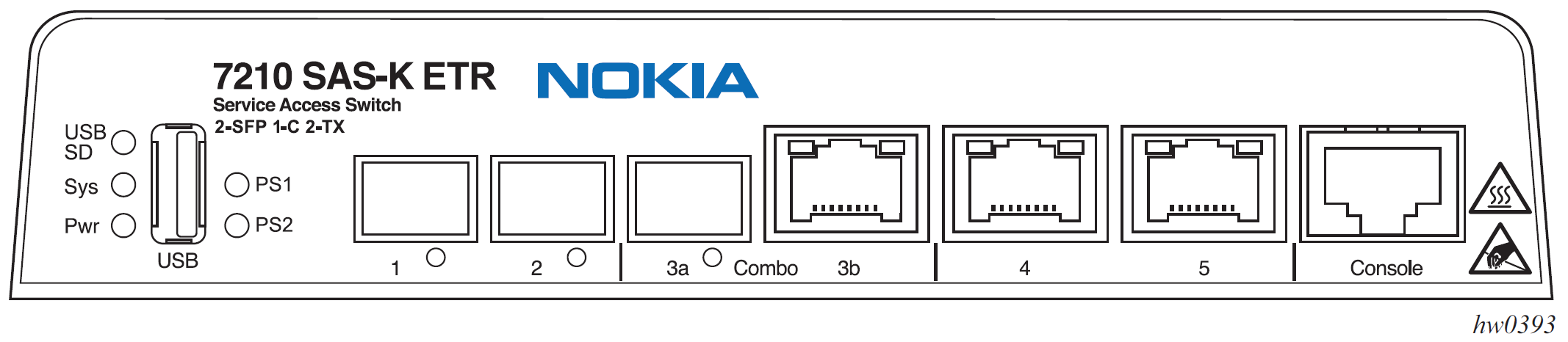
The Network Termination Device (B-NTD) lights provide a quick indication of the service status. These lights help identify whether the issue is with power, the connection, or other parts of the system.
2. SAS-K ETR Interfaces: Front Panel Elements
Understanding the lights and ports on the SAS-K ETR device can help identify issues with your NBN Enterprise Ethernet service.
Standard Unit Power Status LED
- Green: The power entry module (PEM) is functioning normally.
- Amber: The system is performing internal power checks. This may take up to 10 seconds. If this persists longer than 15 seconds, it could indicate that the 12V DC input power is outside the normal range or there is an internal power failure.
- Off: The power entry module has failed or is not connected.
ETR Unit Power Input Status LEDs (PS1 and LS2)
- PS1 LED Green: 12V DC power is present on power entry module (PEM) 1.
- PS1 LED Off: Power entry module 1 has failed or is not connected.
- LS2 LED Green: 12V DC power is present on power entry module (PEM) 2.
- LS2 LED Off: Power entry module 2 has failed or is not connected.
System LED
- Green (blinking): The system is in the boot phase.
- Green: The system has completed the boot phase and is running normally.
- Amber: The system is in an alarm state.
Flash Drive LED
- Green: A valid flash drive is inserted and functioning properly.
- Amber: A flash drive has been removed or has failed.
- Off: No flash drive was connected at power-on, or the flash drive contains an invalid boot-time image.
100/1000 SFP and 10/100/1000BASE-T Copper Port LEDs
- Green: The port has a valid link.
- Green (blinking): There is activity on the port.
- Off: The link is down.
Chapter 2: Basic Troubleshooting Steps
1. Verify CPE Modem Configuration
Ensure that your Customer Premises Equipment (CPE) modem configuration is correct. This includes:
- Firmware version
- Authentication settings
- VLAN tagging
- DSCP or p-bit marking for traffic prioritization
To rule out hardware issues, test your CPE modem at a different location or try a different CPE modem. Ensure that the modem is registered with nbn for full assurance support.
2. Check B-NTD Optical Connectivity
Make sure that the optical cable is firmly plugged into the SFP Module in port 1 of the B-NTD. An unplugged or loose cable can result in connectivity issues.
3. Confirm Another Ethernet Cable Has Been Tried
If the link appears down, replace the Ethernet cable with a known-working one to confirm the issue isn’t related to a faulty cable.
4. Check Local Connectivity
Ensure that your device (e.g., computer, router) is properly connected to the network. Verify that your local connection works by testing another device on the same network.
Chapter 3: Final Steps
1. Check for MAC Addresses
If your device is connected but no traffic is flowing, check whether MAC addresses are being learned by your device from the B-NTD. If no MAC addresses are being detected, check the logical configurations, such as:
- MTU settings
- VLAN tagging
- QoS (DSCP or p-bit marking)
2. Reboot the Device
If all connections appear correct, reboot your device to reinitialize the ports. Sometimes, restarting the equipment can resolve logical issues that prevent network connectivity.
3. Contact Capti Support
If you’ve tried all the above steps and your service is still not working, please contact Capti support for assistance. Be sure to provide details of the checks you've performed.