
Performing a speed test directly from your Network Termination Unit (NTU) can help diagnose potential bottlenecks by bypassing your router. This is an effective way to determine if any limitations are due to your router, or if the issue may lie with your network connection.
What You’ll Need
- A computer with an Ethernet port or an Ethernet adapter
- An Ethernet cable
- Access to the NTU (typically installed by a technician from Capti Vision Network)
Step-by-Step Guide
Step 1: Identify the Correct NTU Port
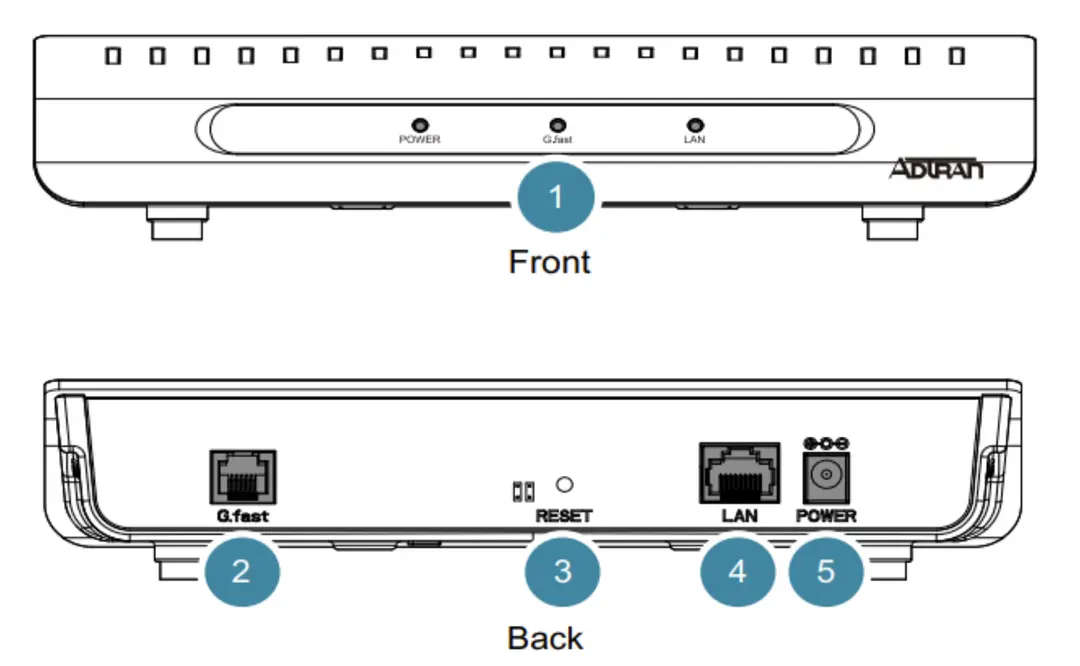
The G.fast NTU provided by Capti Vision Network (typically an Adtran 422G) has the following ports and indicators:
- LAN Port (RJ45): This is where you’ll connect your computer to perform the speed test.
- Status LEDs: These indicate power, connection status, and activity.
Step 2: Disconnect Your Router from the NTU
To isolate the NTU, disconnect your router from the NTU by unplugging the Ethernet cable from the LAN port on the NTU. This ensures that no other devices on your network will interfere with the speed test.
Step 3: Connect Your Computer Directly to the NTU
- Plug an Ethernet cable directly from the NTU’s LAN port into your computer’s Ethernet port.
- Make sure your computer is set to obtain an IP address automatically (via DHCP). Most devices are set to this by default, but you can verify this setting in your computer’s network settings if needed:
- On Windows: Go to Settings > Network & Internet > Ethernet, select your Ethernet connection, and ensure Obtain an IP address automatically is selected.
- On Mac: Go to System Preferences > Network > Ethernet, select Using DHCP from the dropdown for Configure IPv4.
Step 4: Run the Speed Test
Once your computer is connected directly to the NTU:
- Open a web browser and navigate to a trusted speed test site, such as speedtest.net or fast.com.
- Begin the speed test to measure your download and upload speeds.
Step 5: Analyze the Results
Compare the results of the test with any previous results obtained through your router. If the speed test from the NTU shows significantly higher speeds, this could indicate that your router is creating a bottleneck due to settings, limitations in CPU capacity, or other factors.
Optional: Adjust Your Router Settings
If the isolation speed test shows a substantial difference, consider the following:
- Check Router Capacity: Some routers have hardware limitations that can impact speeds. Upgrading to a router with a higher CPU capacity or a model that supports higher throughput may help.
- Review Router Settings: Ensure your router’s settings match Capti’s G.fast requirements:
- WAN Connection Type: Set to Ethernet WAN
- Internet Connection Type: Set to Dynamic/IPoE/DHCP
- No VLAN ID required
- Obtain IP Address Automatically
- Operation Mode: Wireless Router Mode (if using a TP-Link device, ensure this mode is enabled)
If you encounter any issues or need assistance with your setup, Capti’s Customer Service team is available to help.
Additional Information: G.fast NTU Description
Capti Vision Network supplies an Adtran 422G NTU for G.fast services. This NTU transforms the G.fast signal from your existing telephone port into Ethernet, allowing easy connectivity to your router or a computer for direct testing.
| NTU Components | Description |
|---|---|
| Status LEDs | Indicate power, G.fast, and LAN connection status |
| G.fast Uplink Port (RJ11) | Connects to the phone socket |
| LAN Port (RJ45) | Connect your computer or router here |
| 12V Power Connection | Connect the included AC/DC adapter |
Note: NTU specifications may vary; Capti will provide documentation for any updates.
By following this guide, you can effectively isolate and test your connection to help identify if your router may be limiting your internet speed.