
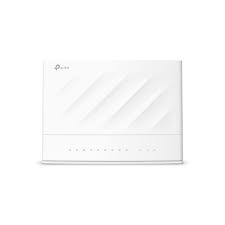
Follow these steps to connect and configure your TP-Link VX230v modem/router to get your Capti internet service up and running smoothly.
1. Connect the Modem to Your Computer
First, ensure that your modem is properly powered and connected to your computer:
- Power Up the Modem:
- Connect the TP-Link VX230v modem/router to mains power using the supplied 12v 1amp power adapterand switch it on.
- The power LED on the front of the modem should light up. Note: Using any other power adapter may damage your modem.
- Connect Your Computer to the Modem:
- You can connect your computer to the modem either through an Ethernet cable or Wi-Fi:
- Ethernet: Use the included Ethernet cable to connect one end to any of the four orange Ethernet ports on the back of the modem/router, and the other end to your computer’s Ethernet/LAN port. The corresponding Ethernet LED on the front of the modem should light up.
- Wi-Fi: Alternatively, connect to the built-in Wi-Fi on the modem. Look for the network name and Wi-Fi password which can be found on a label at the bottom of the modem.
- You can connect your computer to the modem either through an Ethernet cable or Wi-Fi:
2. Connect Your Modem to the NBN Network
Depending on your type of NBN connection, follow the appropriate instructions:
- For NBN FTTP, HFC, or Fixed Wireless:
- Use an Ethernet cable to connect one end to the UNI-D port on the NBN connection box (check your Service Details for the correct port number), and the other end to the port labeled LAN4/WAN on the back of the modem.
For NBN HFC connections, you may need to connect your NBN Connection Box to the wall using the included cables.
- For NBN FTTC:
- Connect a phone cable from your wall socket to the back of the NBN Connection Box.
Then, use an Ethernet cable to connect one end to the Gateway port on the NBN connection box and the other to the port labeled LAN4/WAN on the modem.
- For NBN FTTN or FTTB:
Connect a phone cable from the wall socket to the grey DSL port on the back of the modem.
3. Log into the Modem
Once your modem is connected and the front lights are showing, give it a moment to set up fully before logging in:
- Open a Web Browser:
- On your computer, open your web browser (e.g., Google Chrome, Firefox, or Safari).
- Access the Modem Interface:
- In the address bar, delete any existing text and enter 192.168.1.1, then press Enter.
- If this doesn’t work, try entering http://tplinkmodem.net instead.
- Log In for the First Time:
- The default password is admin1.
- Log In and Access Modem Settings:
- Click Login. If prompted again, enter the password and click Login again.
You will now have access to your modem settings. Follow the steps provided to configure your modem for your Capti service.